

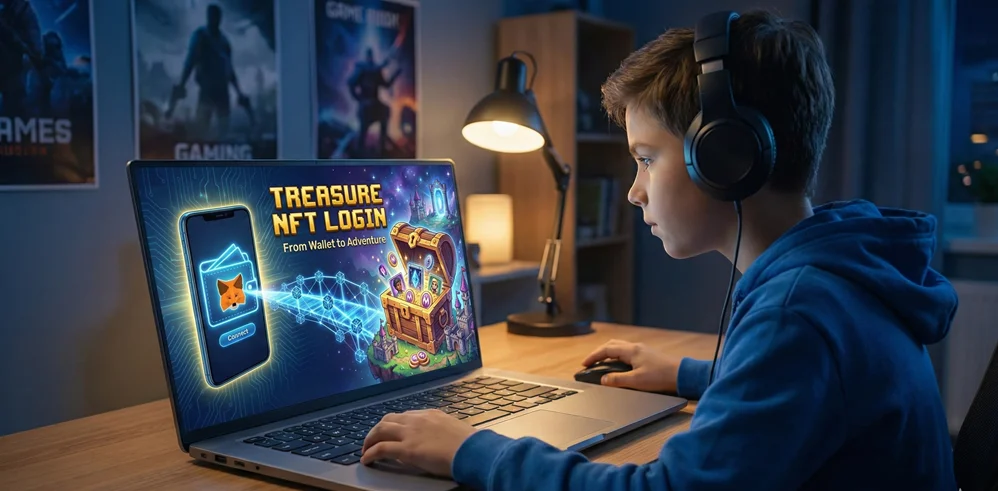

The world of Web3 gaming is burgeoning, shifting from simple pixelated experiments to complex, interconnected ecosystems. Leading the charge in this new frontier is Treasure DAO, often described as the “decentralized Nintendo” of the blockchain world. It is a sprawling landscape of games, metaverses, and a bustling marketplace, all fueled by the MAGIC token and built on the speed of the Arbitrum network.
However, for newcomers transitioning from traditional gaming platforms like Steam or Epic Games, the front door to Treasure can seem locked by unfamiliar technology. There is no “Sign Up with Google” button; there is no “Forgot Password” link.
Accessing the Treasure ecosystem requires a shift in mindset: from centralized accounts to decentralized identity. The “Treasure NFT Login” isn’t a login in the traditional sense—it is a connection. This guide will demystify that process, taking you step-by-step from setting up your digital wallet to stepping into the adventure.
Understanding the Landscape: What is Treasure DAO?
Before diving into the connection process, it is crucial to understand what you are connecting to.
Treasure is not a single game. It is a decentralized video game console and publisher. It hosts a variety of “cartridges” (games) like Bridgeworld, Smolverse, The Beacon, and Zeeverse.
Connecting to the Treasure ecosystem allows you to interact with all these facets through a single point of entry. Your connection enables you to:
-
Buy and sell NFTs on the Treasure Marketplace (Trove).
-
Stake MAGIC tokens to earn rewards.
-
Play various integrated games, carrying your assets and reputation across them.
The entire ecosystem operates on Arbitrum One, a Layer 2 scaling solution for Ethereum. This is important because it means transactions are fast and gas fees (transaction costs) are significantly cheaper than on the Ethereum mainnet, making gaming economically viable.
The Paradigm Shift: The Web3 Login Concept
If you are used to typing in an email and a unique password, the Treasure login process might feel alien. In Web3, you don’t have an account stored on Treasure’s servers. Instead, you have a crypto wallet.
Think of your wallet (like MetaMask, Rainbow, or Coinbase Wallet) as your digital backpack, ID card, and bank account rolled into one.
-
Self-Custody: You own your assets. Treasure doesn’t hold your NFTs; your wallet holds them and grants Treasure permission to view or interact with them when you connect.
-
The “Login” Action: When you click “Connect Wallet” on the Treasure site, you aren’t sending a password. You are cryptographically signing a message that proves, “Yes, I am the owner of this wallet address, and I approve this site to see what’s inside.”
Prerequisites: Getting Your Gear Ready
You cannot start an adventure without the right equipment. Before attempting to connect to Treasure, ensure you have the following three essentials configured.
1. A Non-Custodial Ethereum Wallet
You need a wallet that supports the Ethereum Virtual Machine (EVM). The industry standard and most widely supported option is MetaMask, available as a browser extension (Chrome, Firefox, Brave) or a mobile app. Other excellent options include Rainbow Wallet or WalletConnect-compatible wallets.
-
Action: Download and install MetaMask. Securely write down your 12-24 word seed phrase and store it offline. Never share this phrase with anyone.
2. Configuring the Arbitrum Network
Because Treasure lives on Arbitrum, your wallet needs to be tuned to that frequency. If your wallet is set to “Ethereum Mainnet,” it won’t see the Treasure ecosystem.
Most modern Apps (decentralized applications) like Treasure will automatically prompt your wallet to switch networks when you try to connect. However, you can add it manually within Meta Mask settings using the official RPC details from Off chain Labs (the developers of Arbitrum).
3. Gas Money (ETH on Arbitrum)
While “logging in” (connecting your wallet) usually doesn’t cost money, doing anything after you log in—like buying an NFT, staking MAGIC, or making a move in a game—requires a transaction fee, known as “gas.”
On Arbitrum, gas is paid in Ethereum (ETH). You must bridge some ETH from the Ethereum mainnet to the Arbitrum network using a bridge like the official Arbitrum Bridge, Hop Protocol, or centralized exchanges that support direct Arbitrum withdrawals (like Binance or Coinbase).
The Step-by-Step Treasure NFT Login Process
Once your prerequisites are met, accessing the ecosystem is straightforward. We will use the main Treasure console/marketplace as our primary example.
Step 1: Navigate to the Official Source
Security is paramount in Web3. Always ensure you are using the correct URL to avoid phishing scams. The official hub for Treasure is generally accessed through their main portal or marketplace URLs (e.g., app.treasure.lol or trove.treasure.lol). Bookmark the official sites.
Step 2: Locate the Connect Button
On the top right corner of the Treasure homepage, you will invariably find a button labeled “Connect Wallet,” “Sign In,” or a generic profile icon. Click it.
Step 3: Select Your Wallet Provider
A modal window will appear listing supported wallets.
-
If you are using the MetaMask browser extension, select “MetaMask.”
-
If you are on mobile or using a different wallet, you might choose “WalletConnect,” which will display a QR code to scan with your phone’s wallet app.
Step 4: The Wallet Prompt and Signature
This is the critical moment. Your browser extension or mobile app will pop up with a request from Treasure. It will ask you to “Sign” a message.
-
Read the prompt: It should usually say something simple like “Welcome to Treasure! Signing this message proves you own this wallet. This request will not trigger a blockchain transaction or cost any gas fees.”
-
Click Sign: Once you click sign, the site verifies your cryptographic signature instantly.
Step 5: You Are In
The “Connect Wallet” button will be replaced by a portion of your wallet address (e.g., 0x1234…abcd) or your ENS name if you have one. Your MAGIC balance and owned Treasures should now be visible in your profile dashboard.
Troubleshooting Common “Login” Issues
Even with a simplified process, hiccups occur. Here are common solutions:
Problem: The website stays on a loading spinner after I click connect.
-
Solution: Check your browser extension. Sometimes the MetaMask pop-up is hidden behind the main browser window. Click the fox icon in your extensions bar to see if a request is pending.
Problem: It says “Wrong Network.”
-
Solution: Your wallet is likely still connected to Ethereum Mainnet. Open your wallet and manually switch the network dropdown to “Arbitrum One.” The Treasure site should detect this immediately.
Problem: I connected, but my balance shows zero MAGIC and no NFTs.
-
Solution: First, ensure you are on the correct wallet address if you have multiple accounts. Second, ensure you are looking at the Arbitrum network balances, not Ethereum mainnet balances. If you just bought MAGIC on a centralized exchange, you may need to withdraw it explicitly to the Arbitrum network.
Conclusion: Your Ticket to the Metaverse
The Treasure NFT login process is a rite of passage into the Web3 gaming world. While the initial setup of a wallet and understanding networks takes a moment to learn, the result is a streamlined, universal passport to a sprawling digital landscape.
Once connected, you are no longer just a user with a password; you are an owner with a portable identity. Your wallet is your key, and the Treasure ecosystem is the chest that it opens. Ensure your seed phrase is safe, keep a little ETH for gas, and prepare for adventure in the Bridgeworld and beyond.