


PDF files are becoming increasingly common in our daily work and lives, especially when dealing with formal documents. Adding watermarks to PDFs is a very effective way to protect document content, indicate document status, or make documents look more professional. Whether you want to mark something as “confidential,” add your company’s logo, or simply prevent others from sharing it indiscriminately, a watermark clearly conveys the document’s ownership and purpose.
The good news is that adding watermarks to PDFs doesn’t require advanced design skills or expensive software. In fact, there are many simple methods, both online and offline, that are very easy for beginners and ordinary users to use.
Next, we will introduce three practical methods for adding watermarks to PDFs. These methods include lightweight desktop tools (such as JOPDF), professional editing software (like Adobe Acrobat), and convenient online options. Each method has its own advantages, and you can choose the one that best suits your usage habits and workflow.
Method 1: Add a Watermark Using JOPDF (Simple, Free, and Beginner‑Friendly)
If you’re looking for a clean, straightforward tool that doesn’t require a subscription or complicated menus, JOPDF is a convenient choice. It focuses on essential PDF functions and has a very simple interface, making it perfect for everyday tasks like adding watermarks. Most importantly, it’s completely free and requires no registration.
How to add a watermark to a document using JOPDF?
- Open JOPDF software on your computer.
- Select the PDF file to which you want to add a watermark.
- Click “Edit” – “Watermark” – “Add Watermark”.
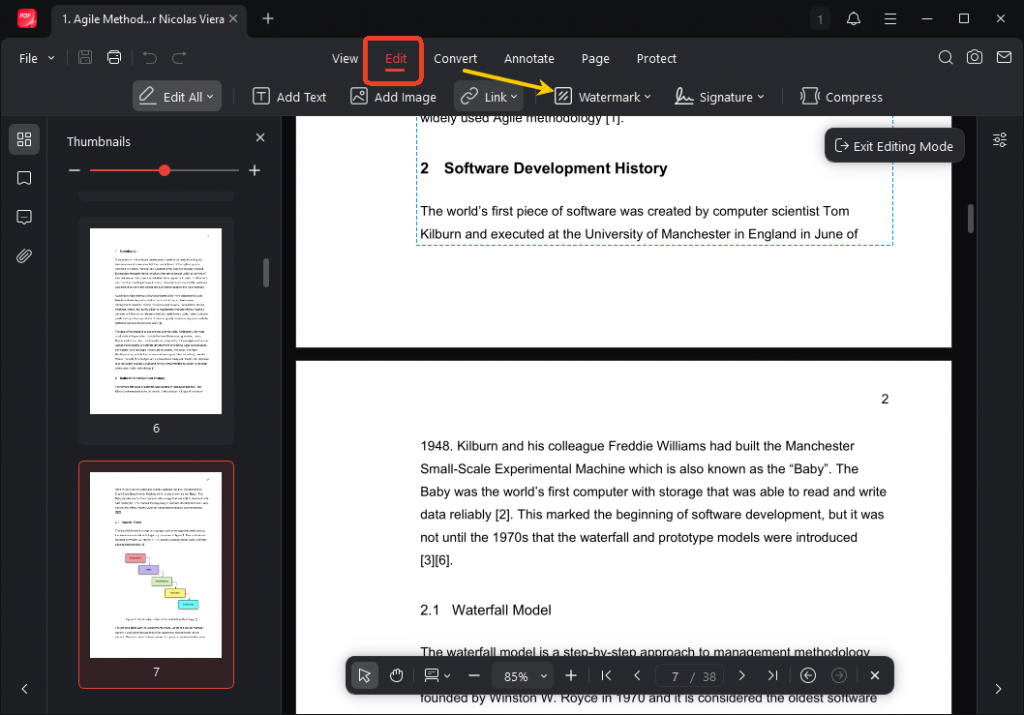
4. Then, select the type of watermark you want to add:
It can be a text watermark (such as “Confidential”, “Draft”, or your name).
It can also be an image watermark (such as a company logo).
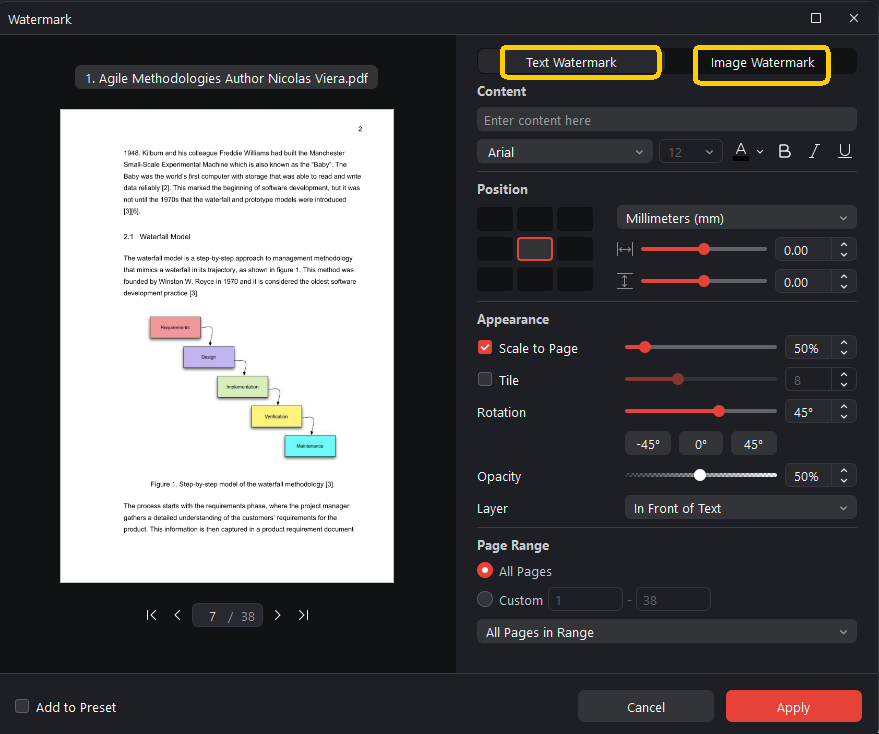
- Next, you can adjust the watermark settings as needed:
Including its position,
Transparency,
Rotation angle,
And size, etc.
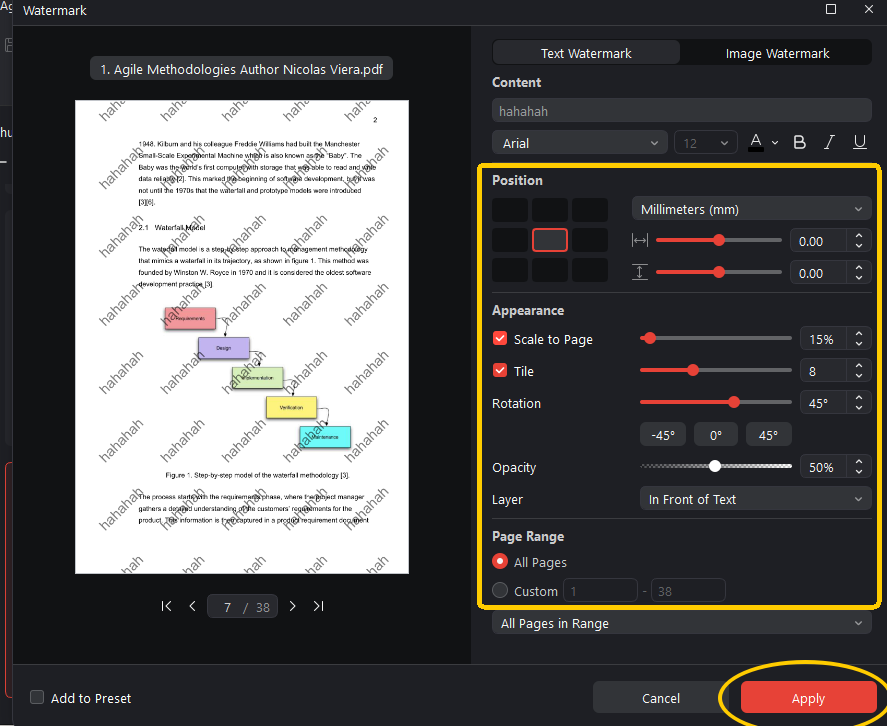
After confirming that all settings are correct, click the “Apply” button to export the watermarked PDF file.
Why choose JOPDF?
◆ It’s free, with no fees whatsoever.
◆ The interface is clean and intuitive.
◆ It supports both text and image watermarks.
◆ It processes large files quickly.
If you’re looking for a simple, reliable, and uncomplicated tool, JOPDF is a great choice.
Method 2: Add a Watermark Using Adobe Acrobat (Professional and Feature‑Rich)
Adobe Acrobat remains the industry standard for PDF editing. If you already use Acrobat Pro, adding a watermark is straightforward and highly customizable.
Steps to Add a Watermark in Adobe Acrobat
- Open your PDF in Adobe Acrobat Pro.
- Go to Tools → Edit PDF → Watermark → Add.
- Choose whether you want a text or image watermark.
- Customize the appearance, including rotation, opacity, and placement.
- Save your file.
Advantages of Adobe Acrobat
◆ Offers advanced customization options.
◆ Supports batch watermarking for multiple files.
◆ Ideal for professional or enterprise workflows.
Limitations
◆ Requires a paid subscription.
◆Interface may feel overwhelming for casual users.
Acrobat is best suited for users who need full control over their documents or work with PDFs regularly in a professional environment.
Method 3: Add a Watermark Using Online Tools (Fast and Convenient)
If you prefer not to install software, online PDF editors provide a quick and accessible way to add watermarks. Popular platforms include:
- Smallpdf
- iLovePDF
- Sejda PDF
- io
How Online Tools Work
- Visit the website.
- Upload your PDF.
- Select the Add Watermark feature.
- Customize your text or image watermark.
- Download the updated file.
Pros of Online Tools
No installation required.
Works on any device, including tablets and Chromebooks.
Good for occasional or one-time use.
Cons
Uploading sensitive documents may raise privacy concerns.
Some platforms limit free usage or require upgrades for advanced features.
Online tools are ideal when you need a quick solution and the document is not confidential.
Which Method Should You Choose?
Your choice depends on your needs:
◆ If you want something free, simple, and fast, JOPDF is the most practical option.
◆ If you need advanced customization or work with PDFs professionally, Adobe Acrobat is the strongest choice.
◆ If you want a quick, no‑installation solution, online tools are convenient.
Each method gets the job done, but the best option is the one that fits your workflow and comfort level.
Final Thoughts
Adding a watermark to a PDF doesn’t have to be complicated. Whether you’re protecting your content, labeling drafts, or adding branding, the three methods above offer flexible and accessible ways to achieve your goal. JOPDF stands out for its simplicity and ease of use, while Adobe Acrobat and online tools provide alternatives for different needs.