

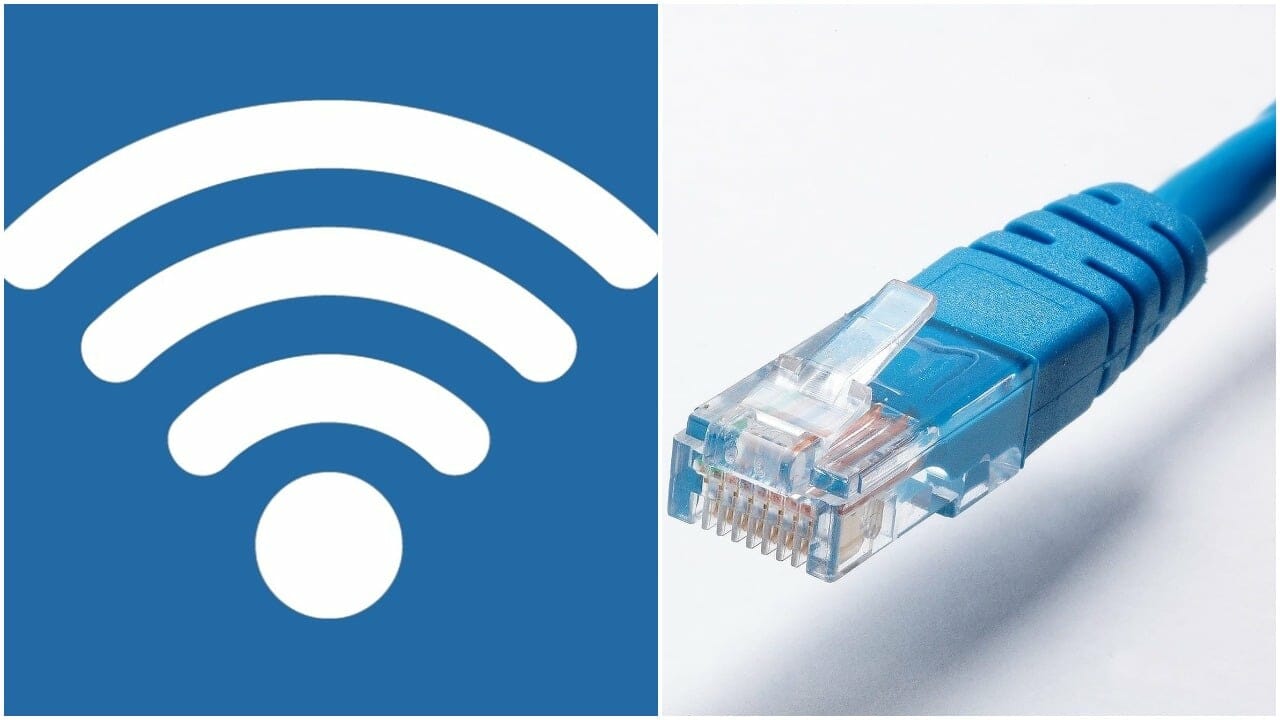

You might often need to set up multiple cable connections to your computer for various purposes. While there are no alternatives for some of them, others allow you to use wireless technology. And, these include connections to routers, printers, as well as your keyboard and mouse.
So, you might want to go wireless, in case you haven’t already. After all, cables often look so messy. Here, you can find out how to install a wireless card on your computer.
Simple Steps for Installing a Wireless Card
Both desktops and laptops use wireless cards for connections. Also, you can easily install one on your computer without professional help. But, if you are facing any problems regarding wireless cards on your laptop? Then, reach out to the nearest laptop repair Dubai immediately to fix the issue. According to the experts associated with UAE Technician, you must follow the steps carefully to avoid any mishap.
1. In Desktop Devices
You can install a wireless card on your desktop with a few simple steps. For that, you must follow the steps given below:
Unplug the device from the power
Before dealing with its hardware, you must always switch off your computer. So, you must do the same in this case as well. Also, make sure to detach the device from the power source. This is the first step that you must take before you proceed with the wireless card installation.
Remove your desktop cover
Since you’re going to install a wireless card, you have to open up your desktop. Now, the older models feature screws on the cover. So, get a screwdriver and remove them to access the wireless card slot.
According to UAE Technician, in later models, this task is much simpler. You need to find a switch for removing the desktop’s cover. Most of the recent models come with this feature. Also, this applies to PCs as well as Mac devices.
Find the wireless card slot and insert the card
After removing the cover, you must look for the wireless card slot on your desktop. In PCs, there are multiple slots for various hardware components, and they are called peripheral component interconnect (PCI) slots. You must place the wireless card in one of them.
Using a Mac device? The process is somewhat similar to that in the case of PCs. In this case, you must look for Airport card slots. According to experts of laptop repair Dubai, this might differ based on the model that you’re using. Place the wireless card in the right slot and proceed with the next step.
Run the wireless card software
Usually, you get software that you need to run for installing the wireless card on your device. So, switch on your desktop once you’ve placed the card in its slot. After that, run the software to finish the installation on your desktop.
2. In your laptop
Want to install a wireless card on your laptop? Then, here’s how you must proceed with it. But, never compromise if you need help.
Remove your laptop’s battery
According to MacBook Repair dubai experts, you must make sure to detach your device from power. In the case of laptops, you must do that by removing the battery. Even though this step isn’t as important for laptops, you might want to follow it. However, many laptops nowadays don’t feature removable batteries. In such cases, simply proceed with the next step.
Remove the cover
In PCs, you’ll find a cover marked C for communication. You must open it to reach the wireless card slot. Are you using a Mac device? Then, you’ll have to remove the entire back cover.
Place the card in the slot
This step is similar to the one that we’ve mentioned for desktop devices. In the case of PCs, you have to insert the card in a PCI slot. On the other hand, if you’re using a Mac, insert the same in an Airport slot. Once you’re done, place the battery back into the device if you had removed it. After that, start your laptop to proceed with the next step.
Configure the wireless network
Like in the case of desktops, you need to run the wireless card software. Also, you must make sure that you’ve placed the card correctly in its slot. Regardless, you need to run the software and configure the network after you’re done. After that, you’re ready to enjoy wireless connectivity on your laptop.
How Installing a Wireless Card Will Benefit you?
Going wireless would change your experience of using your computer in many ways. Here are some of the reasons, why people might choose it over cable connections:
1. Allows more mobility
With wired connections, you can’t freely move your device from one location to another. Even if you can, it offers you very limited mobility. Wireless connections, on the other hand, offer you a much higher level of mobility. You can freely move your device anywhere, provided that you’re within the network’s range.
2. Reduces clutter
This probably isn’t the biggest reason to go wireless, but it surely is a significant one. Especially so, for offices and any workplaces that need to use many cables. Wireless technology has proved quite beneficial for them. The same applies to any users who want their room to look a bit tidier.
3. Wider reach
Apart from other things, cable connections limit your reach as well. Wireless connections, on the other hand, have a greater range. Further, you can use networks with various ranges as per your requirements. So, it allows you the same level of customisations as wired connections do.
4. Lesser costs
Getting a good-quality cable connection usually requires a significant amount of investment. So, if you’re looking for a less costly alternative, you must go wireless. After all, the only other option is to buy and use cheap cables. So, this is yet another big reason why people choose wireless connections.
Wrapping up……
A wireless card is among the most useful pieces of hardware that you can add to your computer. The steps mentioned here should help you install a wireless card on your device. Also, they don’t require you to use any special types of equipment. A screwdriver is pretty much all that you’d need for the task. Yet, you might come across some issues in the process. So, you might also want to consider handing over the task to a professional.