


This article carry three different techniques for the user query i.e. “how to migrate photos from one Google account to another?” If you are searching for the same then, just go through each approach and choose the most reliable solution for the same.
User Query:
“When I started college, I was given a Google account. Now that I am in my third year of college, I have all of my photographs posted to my institution’s Google Photos account. My Google account will be closed after graduation, and if I do not save these photos somewhere, I will lose them. Please advice on a straightforward technique for transferring these photographs to my second Google account.”
Google Photos is the popular application of Google for storing and sharing images on the cloud.
It has come up with many advanced features making the task easy for users to secure their precious albums and photos, being able to access and share them anytime.
There might be a variety of reasons why a user would wish to move his Google Photos from one account to another. To make your work easier, I will give you all the information you need to move Photos from one Google account to another in this post, so that you don’t have to look any further.
The built-in technique provided by Google to transfer Photos from one Google account to another is simple, but it is not the ideal solution because the quantity of data to be moved is massive and the method becomes time-consuming.
So, what is the perfect way to transfer Photos from one Google account to another?
Methods to Migrate Photos from One Google Account to Another?
This blog will go through all of the ways available for migrating Photos from one Google account to another. You can select the technique that best suits your needs. It is suggested to use a technique that does not have any of the manual tool’s shortcomings.
Method 1: All-Rounder Tool to Migrate Photos from One Google Account to Another.
Google Drive Migrator is a tool which helps you to migrate your Photos from one Google account to another at once.
This software not only migrates your valuable photos but also other Google Drive data like Docs, Slides, Sheets etc. you can even migrate the photos within a specific time range using the data-filter option. The hierarchy of the photos will be maintained after the migration process is completed.
Follow the steps to have a better understanding:
Step 1: Activate and Launch the tool on your system/laptop.
Step 2: Under the Setup tab and select G Suite as the Source & Destination platform.
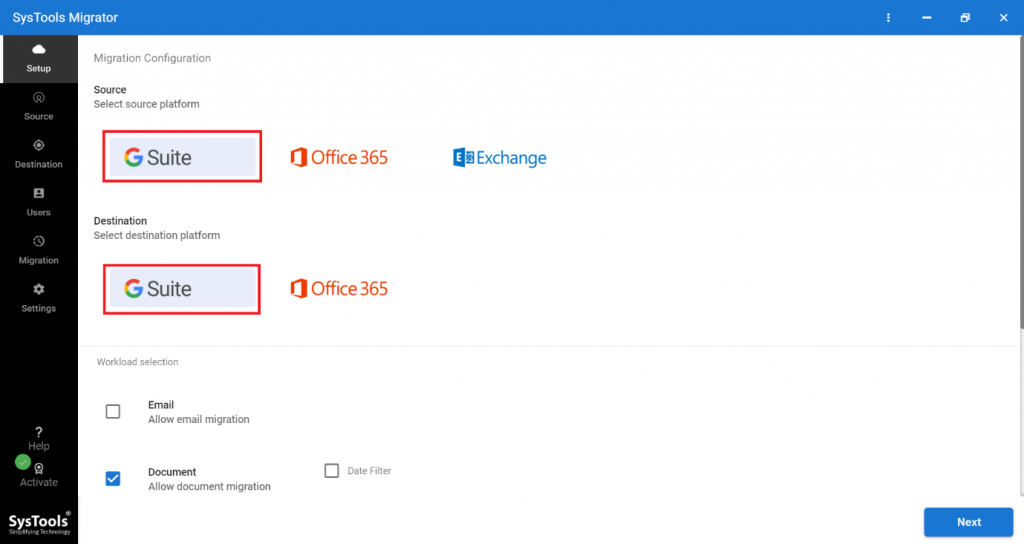
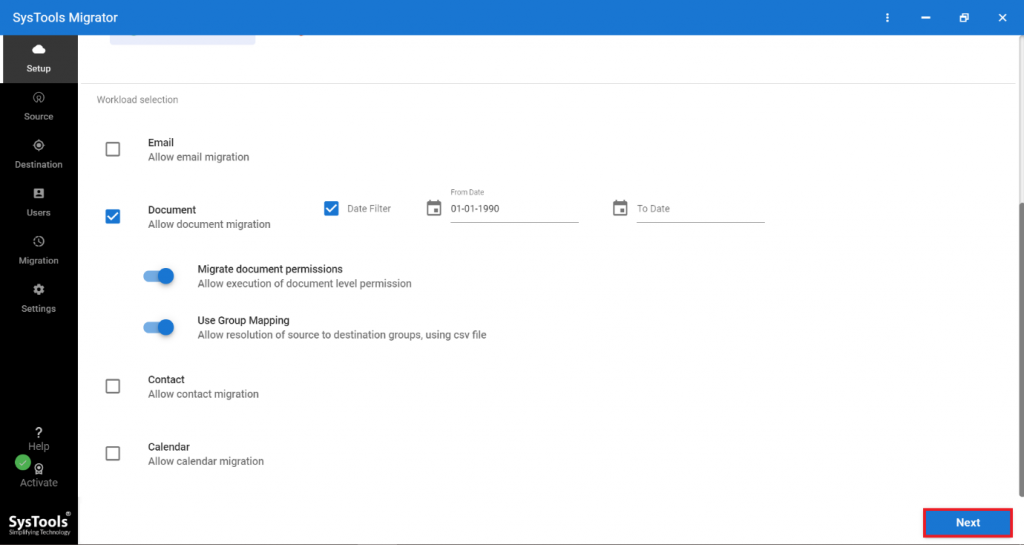
Step 3: Choose the Document option under the Workload Selection. Also, make use of the different filters available in order to transfer photos from one Google account to another.
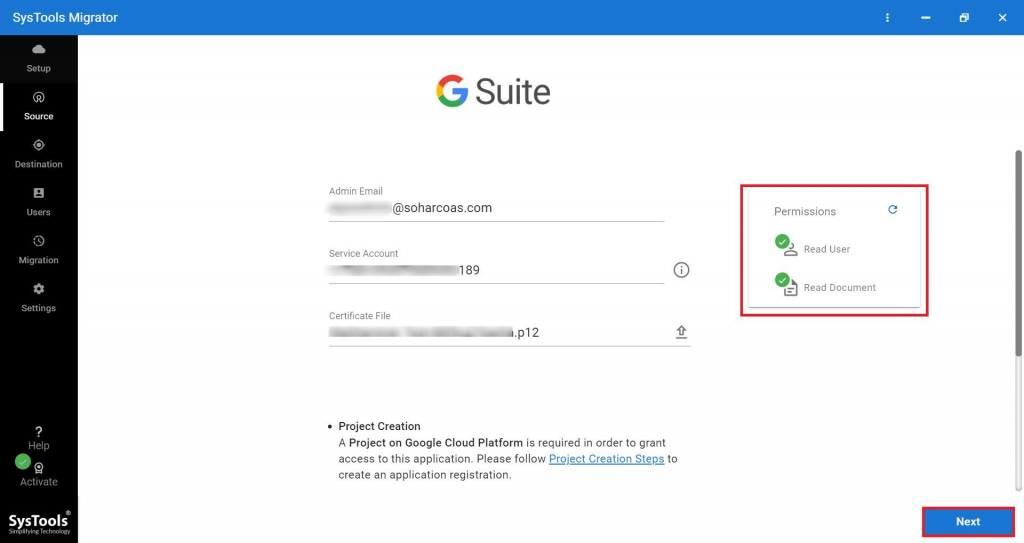
Step 4: Enter your G Suite details and add a certificate file. Then, validate your details and click on Next.
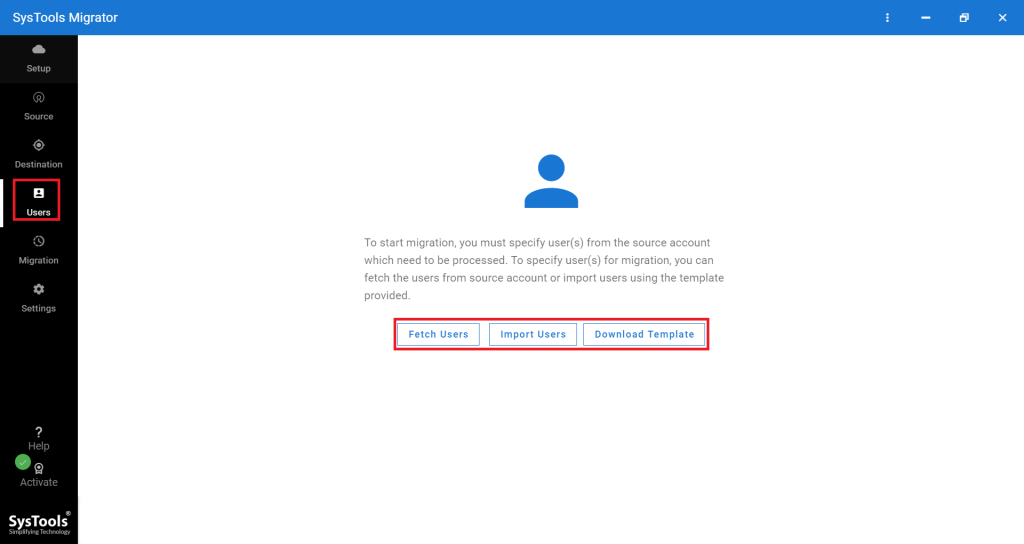
Step 5: Users from accounts that need to be processed should be added. There are numerous methods for adding users:
- Fetch Users: Get the user from the source domain in this example.
- Import Users: This may be accomplished by importing a CSV file.
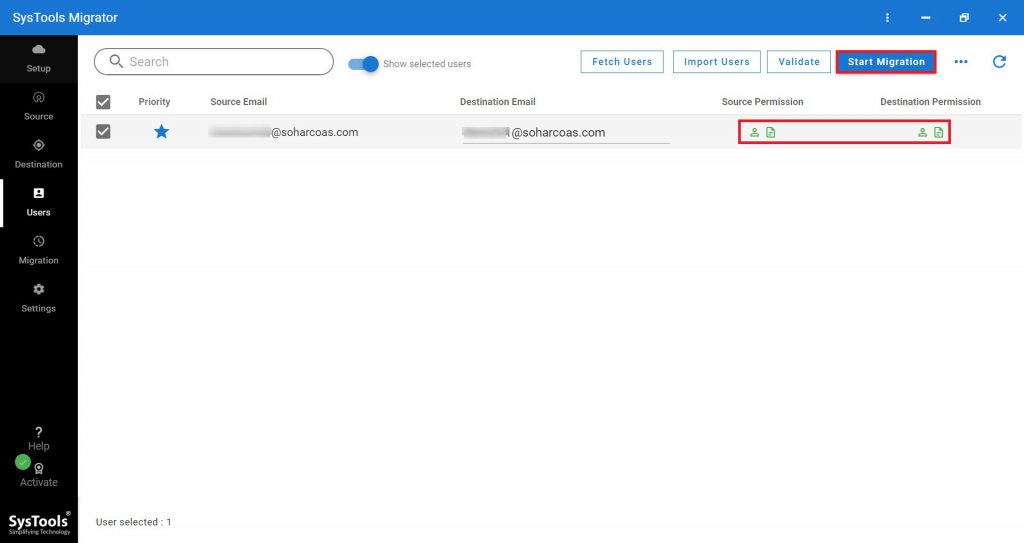
Step 6: Lastly, click on the Start Migration option, after validating the users.
Method 2: Use the Download and Upload Option to Migrate Photos from One Google Account To Another
Google provides an in-built feature to the People who are using Google Photos and want to download the media files to their local system and then upload it from there.
Follow the steps to know how to do it:-
Downloading Method:
- Launch Google Photos on your system web browser and sign in with your account and credentials.
- Select the required pictures, then click the three dots and choose the “Download” option from the drop-down menu.
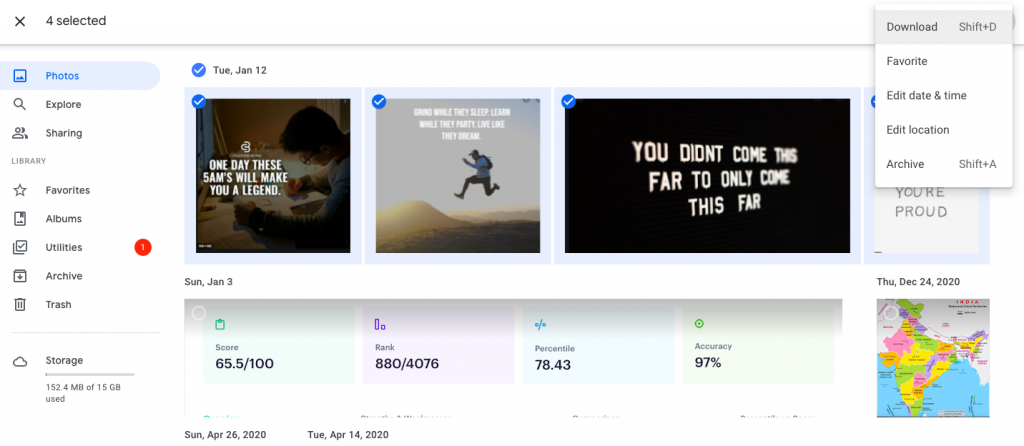
- The files in the ZIP file format will be downloaded and you can find them in the “Downloads” folder of the system.
- Shift this Zip folder to your preferred location and extract the files from there in order to transfer photos from one Google account to another.
Uploading Method:
- Sign in to Google Photos with the second account and then click the “Upload” button.

- Select “Computer” as the Upload mode.
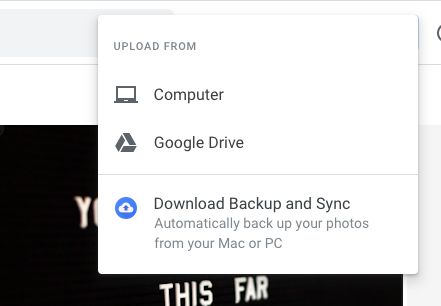
- Select the files to upload (the ones you extracted from the ZIP folder) and click “Open” In order to migrate photos from one Google account to another.
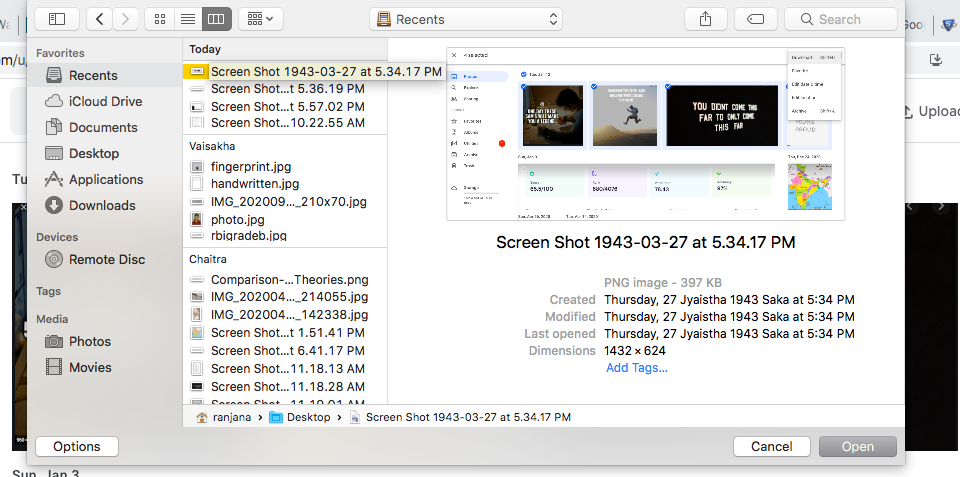
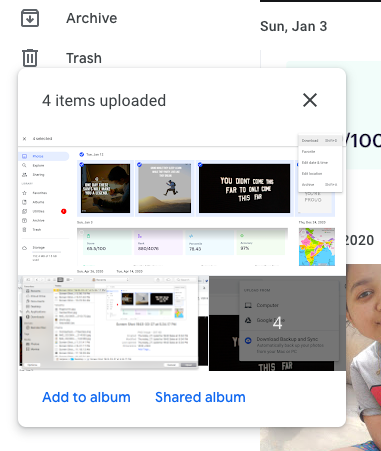
- The media files will now get uploaded to your other Google account.
Method 3: Using the Partner Sharing feature to Migrate Photos from One Google Account to Another
Read the steps to know how to do it:
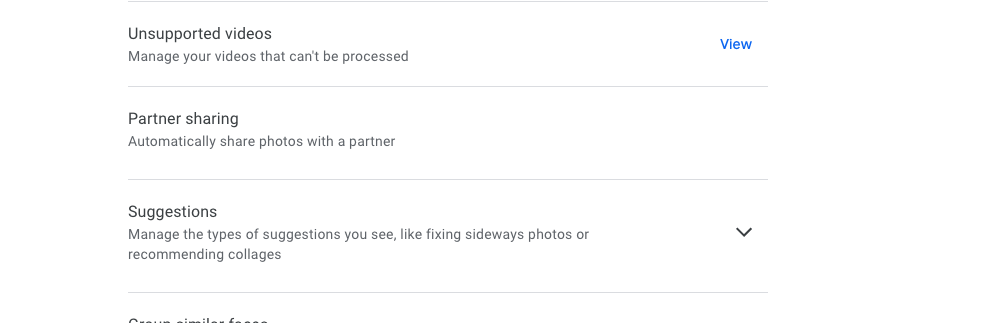
- Select the “Settings” icon in your source account Google Photos app and choose the “Partner sharing” option.
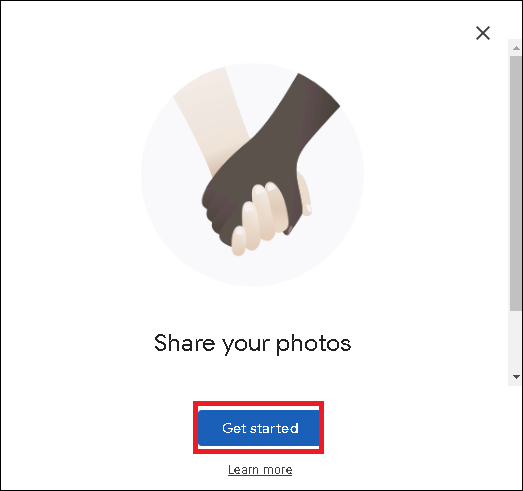
- Select get started to initiate the process.
- Select the partner (the other Google account) using the search box.
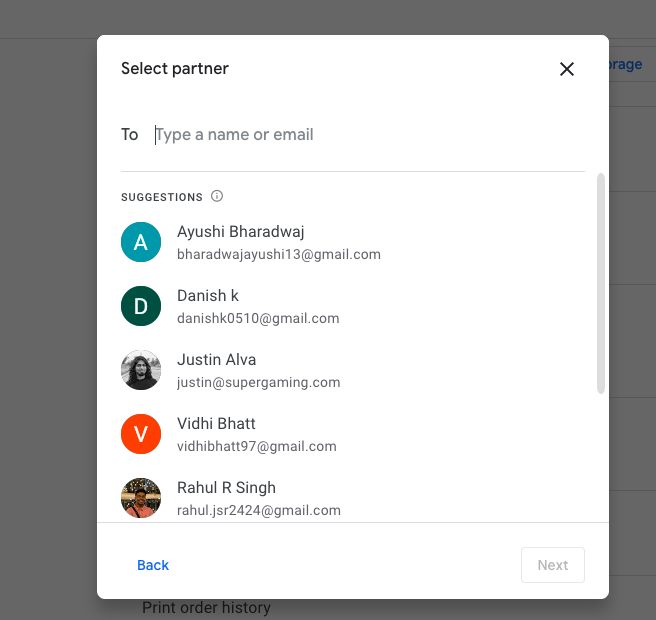
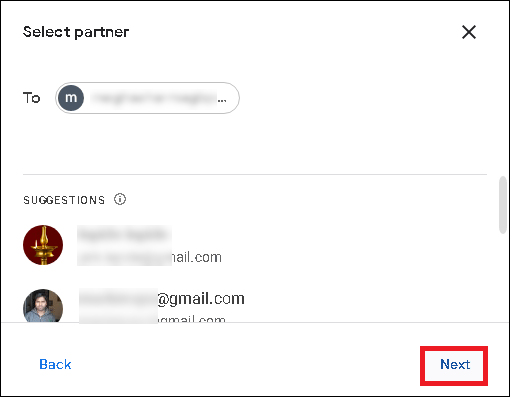
- After adding the other Google account’s email address, where you want to send your Google Photos, click on Next.
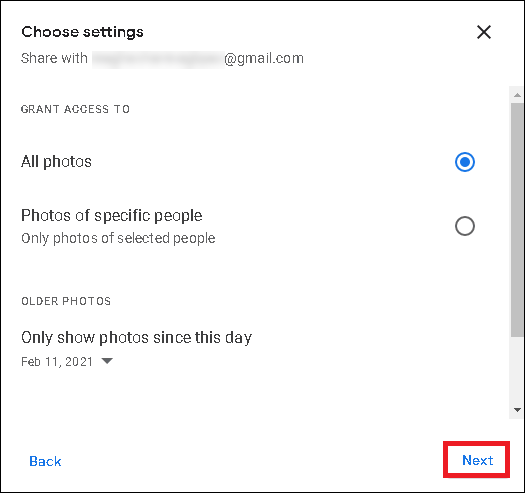
- Choose whether you want to allow the partner access to all photographs or photos of selected persons. You may even include a date to show photographs from a certain day to your sharing partner. Then press the Next button in order to transfer photos from Google account to another.
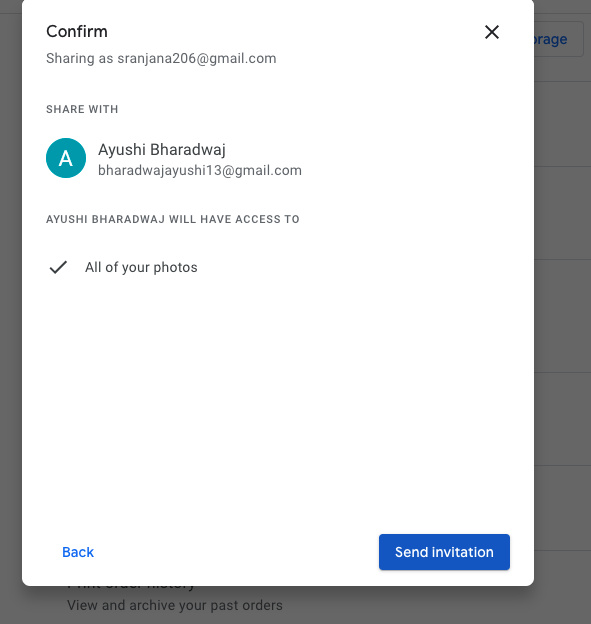
- Hit the Send invitation option to send an invitation through Gmail.
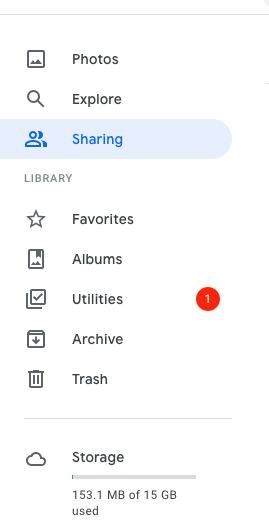
- Now, on the second account, launch the Google Photos app and select “Sharing” from the left panel.
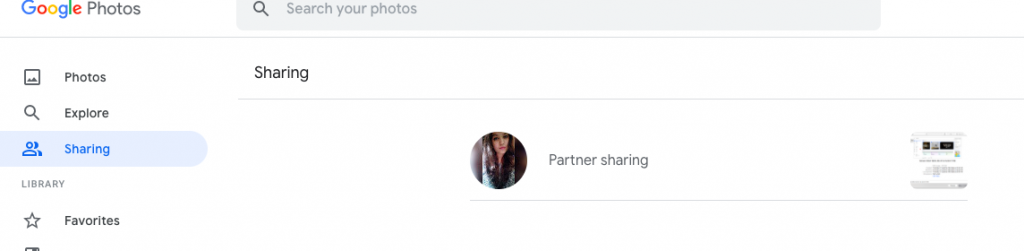
- Next, select the new activity partner sharing link.
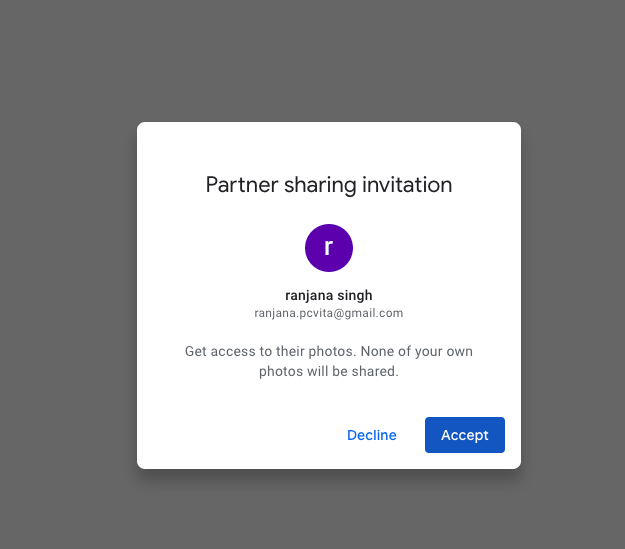
- Select the Accept option to take on the Partner sharing invitation.
- You can stop sharing your photos by visiting the Google Photos Settings option and selecting the “Remove partner” button under the Partner sharing section.

- Click on the Remove option to disable the partner to access your photos.

Wrapping Up
This post discusses the best techniques to transfer photos from one Google account to another.
However, if you are searching for a specialized tool that will make your job feel like a breeze and will save you from having to conduct lengthy procedures, you may utilize above mentioned tool.